Risk Management
In one sentence: Find the risks in your unit, rate how serious they are, decide what to do about them, and follow the measures until the risk is under control. Menu: Risk-Management · Status: Live
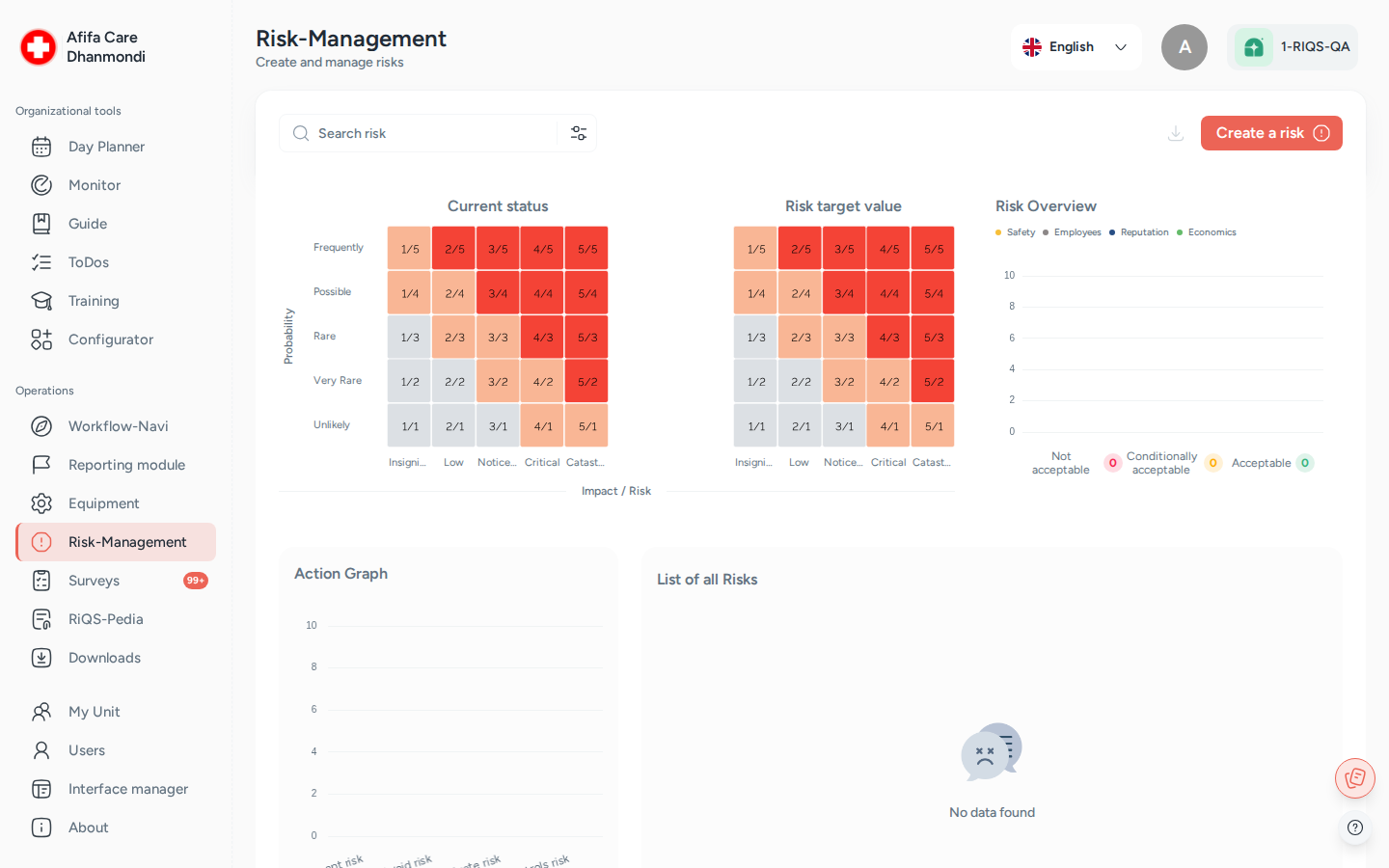
Risk-Management: the risk matrix (current and target value) and the list of risks. Screens show test data.
What it is
Every practice or department has things that could go wrong: a device fails, a drug is mixed up, a new colleague is not trained in time. Risk Management is the place to write these risks down before something happens, and to keep track of what you are doing about them.
Think of it as a risk register with a built-in to-do list. For each risk you describe what could happen, why, and what is already in place. Then you assess it: how bad would the impact be, and how likely is it? RIQS turns this into a risk value (for example 3/4) and shows it on a coloured matrix. You decide on a measure (avoid, reduce, monitor or accept the risk) and create To-Dos for the people who must act. When the risk is under control, an Administrator, Power User or Management user approves it.
The dashboard gives management a picture of all risks in the unit at a glance: how many there are, how serious they are, and how many measures are still open.
Key terms
| Term | Meaning |
|---|---|
| Risk | Something that could go wrong in the unit. It has a name, a topic, a category and sub-category, owners, and a description. |
| Topic | The broad area of the risk. The app offers four: instruments, administration, staff, and drug products. |
| Risk Owner | The person responsible for the risk. |
| Professional (on a risk) | The people who work on the risk. This is not the same as the Professional role. |
| Assessment | One rating of the risk at a point in time. A risk can have many assessments. The newest one counts. |
| Impact | How bad the damage would be: 1 insignificant, 2 low, 3 noticeable, 4 critical, 5 catastrophic. |
| Probability | How likely it is: 1 unlikely, 2 very rare, 3 rare, 4 possible, 5 frequently. |
| Assessment (verdict) | Your judgement of the risk: 1 acceptable, 2 conditionally acceptable, 3 not acceptable. |
| Current value | Impact and probability together, written as impact/probability, for example 4/3. |
| Target value | The value you want to reach after the measures, for example 2/2. |
| Measure | Your strategy: Avoid risk, Mitigate risk, Monitor risk or Accept risk. |
| Measures taken / Measures pending | The To-Dos created for this risk that are done, or still open. |
| CIRS incident | A report from the Incident Reports module that you can link to a risk as evidence. |
Who uses it
| Role | What they typically do here |
|---|---|
| RiQS Administrator | Supports clients. Can see and manage risks and delete assessments. Cannot approve risks. |
| Group Administrator | Oversees risks across the organisations in the group. Cannot approve risks. |
| Administrator | Manages and approves risks across all units of the organisation. |
| Power User | Runs risk management for their unit: creates, assesses, follows up and approves risks. |
| Management | Creates, edits, assesses and approves risks, and creates To-Dos. Cannot delete risks. |
| Professional | No access to Risk Management as a role. A Professional can still be named as a risk owner or professional on a risk, and receives the To-Dos. |
How it works
- Identify. Someone creates a risk and fills in what could happen, the impact, the causes and the existing measures. They can link CIRS incidents that show the risk is real.
- Assess. They rate impact, probability and verdict, pick a target value and choose a measure. This can be done straight away or later.
- Act. From the risk, they create To-Dos for the people who must carry out the measures. The risk shows how many measures are taken and pending.
- Re-assess. When things change, they add a new assessment. The history of all assessments is kept.
- Approve. When the risk is under control, an Administrator, Power User or Management user approves the risk. It is then locked.
A risk has one of three statuses. The status is set automatically:
Identified → Pending → Approved
| Status | Meaning | What moves it on |
|---|---|---|
| Identified | The risk exists but has no assessment yet. | Adding the first assessment. |
| Pending | The risk has at least one assessment and is not approved yet. | An Administrator, Power User or Management user chooses Approve Risk. |
| Approved | The risk has been approved. The risk is read-only. | No way back (see Open questions). |
Separately, each risk is Active or Inactive. Inactive risks are kept for the record but hidden from the default list.
How to …
How to create a risk
Who can do this: RiQS Administrator, Group Administrator, Administrator, Power User, Management 1. Open Risk-Management and click Create a risk. 2. On the Creation step, fill in the Risk name, Topic, Category, Sub category, at least one Risk Owner and at least one Professional. These are required. 3. Optionally describe the incident, Impact, Causes, Existing measures and Remarks. 4. Optionally click Use CIRS incident to link one or more CIRS reports. 5. Click next to go to the Assessment step. Fill it in (see the next task), or choose Save without assessment to assess later. 6. Save.
Result: The risk appears in the list with status Identified (no assessment) or Pending (with assessment).
How to assess a risk
Who can do this: RiQS Administrator, Group Administrator, Administrator, Power User, Management 1. Open the risk. 2. In Assessments, click Add Assessment. 3. Choose Impact, Probability and Assessment, then a Target Value and a Measure. All five are required. 4. Save.
Result: The new assessment becomes the current one. The matrix shows the current and target values. Older assessments stay in the history.
How to create To-Dos for the measures
Who can do this: RiQS Administrator, Group Administrator, Administrator, Power User, Management, while the risk is not approved 1. Open the risk and click the ⋮ (more) menu. 2. Choose Create To-Do. 3. RIQS opens the To-Do form with the risk, its category and topic already filled in. Choose the people and the due date, then save.
Result: The To-Do is sent to the people you chose. It appears on the risk under Measures pending until it is completed, then under Measures taken.
How to approve a risk
Who can do this: Administrator, Power User, Management 1. Open the risk and click the ⋮ menu. 2. Choose Approve Risk.
Result: The status changes to Approved. Editing, assessing and creating To-Dos are no longer possible for this risk.
How to copy, edit, deactivate or delete a risk
Who can do this: see Who can do what 1. Open the risk. 2. Use the Active / Inactive switch to deactivate or reactivate it. 3. Use the ⋮ menu for Copy, Edit or Delete. Copy opens a new risk pre-filled from this one. 4. To delete several risks, select them in the list and click the delete button.
Result: The list updates. A deleted risk disappears, together with its assessments and its To-Dos.
How to find risks and download reports
Who can do this: RiQS Administrator, Group Administrator, Administrator, Power User, Management 1. Use Search risk to search by name. 2. Click Filter to filter by category, topic, risk status, owner, professional, added by, created or updated date, measure status, active status, impact, probability, assessment, measure, value or target value. 3. Click the download icon and choose: - Risk Overview report (PDF) for the unit, with charts. - Excel report for the filtered unit. - Excel report for all units. 4. To download one risk, open it and click the download icon. You get a PDF of that risk.
Result: You choose a file name and the file is downloaded.
Rules to know
- Required to create: risk name, topic, category, sub-category, at least one risk owner and one professional.
- Who can be picked as owner or professional: active users of the unit with the role Power User, Management or Professional.
- Approved means locked. After approval nobody can edit the risk, add, edit or delete assessments, or create To-Dos for it.
- Who approves: Administrators, Power Users and Management users. RiQS Administrators and Group Administrators cannot approve risks.
- The last assessment cannot be deleted. Delete only appears when a risk has more than one assessment.
- Deleting a risk also deletes its assessments and the To-Dos created from it.
- Audit-safe mode: in organisations that run audit-safe, only the RiQS Administrator can delete risks. Others deactivate instead. See Audit-safe mode.
- Dashboard charts show the current and target values of risks on a matrix by topic, a bar chart of identified, pending and approved risks split by verdict (acceptable, conditionally acceptable, not acceptable), and an Action Graph of the To-Dos.
Who can do what
| Action | RiQS Administrator | Group Administrator | Administrator | Power User | Management | Professional |
|---|---|---|---|---|---|---|
| Open the dashboard, search, filter | ✅ | ✅ | ✅ | ✅ | ✅ | ❌ |
| Create, copy, edit a risk | ✅ | ✅ | ✅ | ✅ | ✅ | ❌ |
| Activate / deactivate a risk | ✅ | ✅ | ✅ | ✅ | ✅ | ❌ |
| Delete a risk (regular) | ✅ | ✅ | ✅ | ✅ | ❌ | ❌ |
| Delete a risk (audit-safe mode) | ✅ | ❌ | ❌ | ❌ | ❌ | ❌ |
| Add / edit an assessment | ✅ | ✅ | ✅ | ✅ | ✅ | ❌ |
| Delete an assessment | ✅ | ✅ | ❌ | ❌ | ❌ | ❌ |
| Link a CIRS incident | ✅ | ✅ | ✅ | ✅ | ✅ | ❌ |
| Create a To-Do from a risk | ✅ | ✅ | ✅ | ✅ | ✅ | ❌ |
| Approve a risk | ❌ | ❌ | ✅ | ✅ | ✅ | ❌ |
| Download risk reports | ✅ | ✅ | ✅ | ✅ | ✅ | ❌ |
| Download Excel report for all units | ✅ | ✅ | ✅ | ✅ | ✅ | ❌ |
The Roles & Rights sheet gives an Equipment Officer the same risk rights as a Power User: create, view, edit, activate / deactivate, delete in the regular version, and reports. See Open questions.
Connected modules
- Incident Reports: CIRS reports can be linked to a risk as evidence.
- Open Items: measures are carried out as To-Dos created from the risk. Their status feeds Measures taken / pending.
- Configurator: the categories and sub-categories used for risks are set up there.
- Equipment: device risks are usually recorded under the instruments topic.
- Reports & downloads: risk overview and single-risk reports.
Open questions
- Can an approved risk be reopened? There is no button to undo an approval. Is that intended?
- RiQS Administrator and the Active switch. The Roles & Rights sheet says the RiQS Administrator can activate and deactivate risks. The feature list leaves it open. Please confirm.
- Topic names. Some topic names show placeholder text in English (for example "Topic 7"). What are the correct on-screen names for the four topics?
- Equipment Officer column. The source role sheet gives the Equipment Officer full risk rights. Does being an Equipment Officer really grant Risk Management rights?
- Delete assessment is limited to RiQS and Group Administrators in the feature list (the Roles & Rights sheet does not mention it). Should Administrators and Power Users not be able to remove a wrong assessment?
Last reviewed: 2026-10-26