Reports and downloads
In one sentence: The Downloads menu is the download centre: every report you request anywhere in RIQS is built in the background and collected here, ready to download. Menu: Downloads · Status: Live
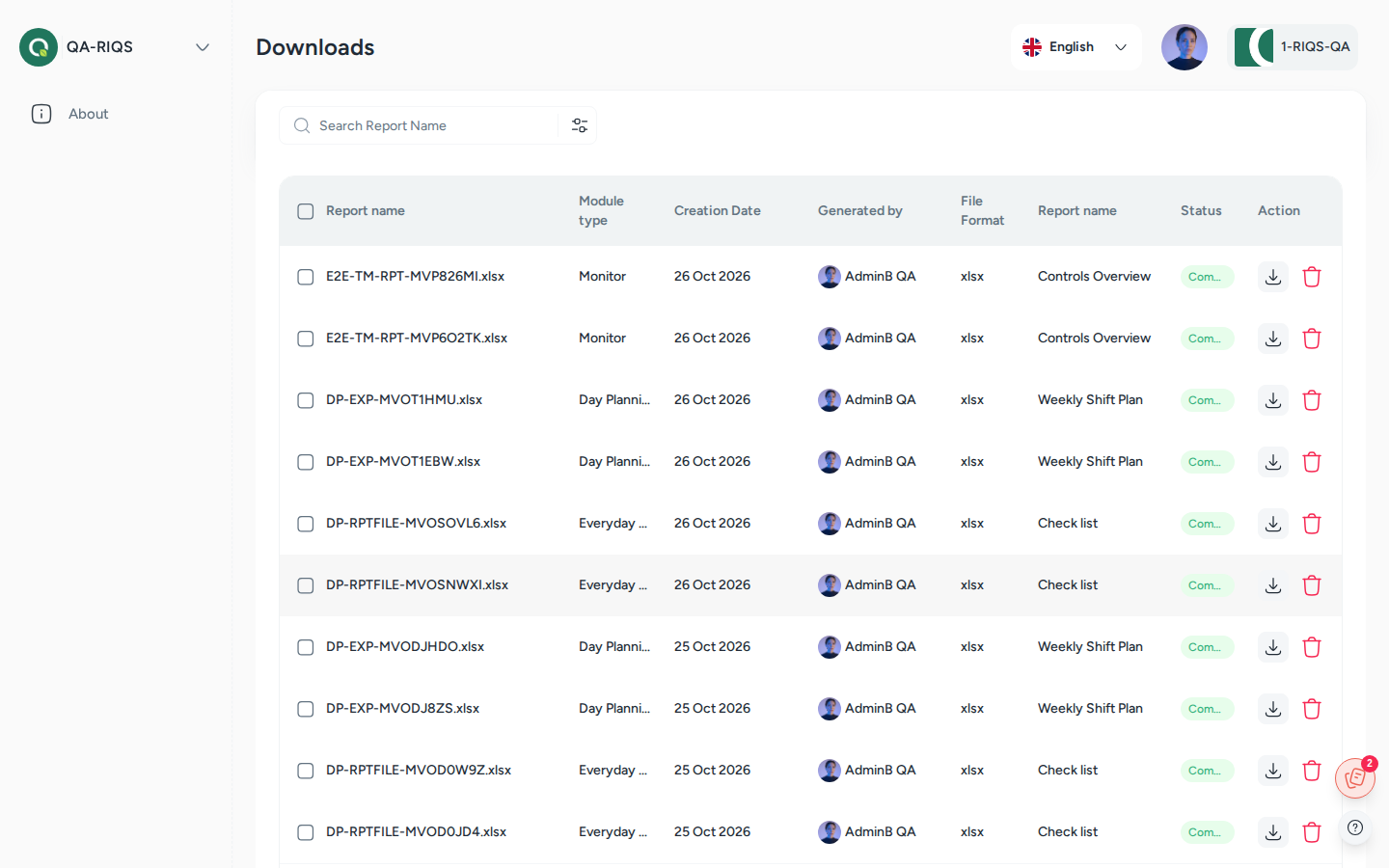
Downloads: requested reports with module, format and status. Screens show test data.
What it is
Many RIQS pages have a download button: Monitoring, To-Dos, Training, Process Guide, Equipment, Risk Management, Users, RiQS-Pedia, Shift Plan and others. Big reports can take a while to build. So RIQS does not make you wait on the page. It builds the file in the background and puts it in one central list: the download centre.
Think of it like a print queue. You send the job, carry on working, and pick up the result later.
This page also explains report templates in short. A report template is the layout of a document that people fill in, for example an equipment maintenance report or a survey. Templates are built in other modules (see below).
Key terms
| Term | Meaning |
|---|---|
| Download centre | The list on the Downloads page with all reports you requested. |
| Report request | Clicking a download button in a module. RIQS then starts building the file. |
| File name | The name of the report. Many modules let you type your own name when you request it. |
| Report classification | What kind of report it is, for example "Task monitor report", "Training report" or "Risk details report". |
| Report type | The file format: Word (docx), Excel (xlsx) or PDF. |
| Report template | A reusable layout (cover page, sections, questions, signatures) for documents that people fill in. |
Who uses it
| Role | What they typically do here |
|---|---|
| RiQS Administrator | Sees the reports of all users in the selected organisation and unit, for support. |
| Group Administrator | Downloads reports they requested. |
| Administrator | Downloads reports they requested. |
| Power User | Downloads reports they requested. |
| Management | Downloads reports they requested. |
| Professional | Downloads reports they requested, from the modules where they may download. |
How it works
Request in a module → Pending → In Progress → Complete (download) or Failed
- In a module, you click its download button. Some modules ask for a file name or format first.
- A new row appears in the download centre with the status Pending.
- RIQS builds the file. The status changes to In Progress.
- When it is ready, the status changes to Complete and the download button becomes active. If something goes wrong, the status is Failed.
- You can delete rows you no longer need.
The list shows these columns: File Name, Module, Report classification, Requested Date, Generated by, Report type and Status.
How to …
How to request a report
Who can do this: anyone who has the download button in that module 1. Open the module, for example Monitor or Equipment. 2. Click its download button. Choose a format or type a name if you are asked. 3. Confirm.
Result: The report is added to the download centre.
How to download a report
Who can do this: all roles 1. Click Downloads in the left menu. 2. Find your report. Search by name, or use Filter. 3. When the status is Complete, click the download icon in the row.
Result: The file is saved to your computer.
How to search and filter
Who can do this: same as above 1. Type part of the file name in the search field. 2. Click Filter. You can filter by: - Start date and End date - Module - Report classification - Generated by - Report type - Status 3. Apply the filter. Each active filter is shown as a chip. Remove one chip, or clear all.
Result: The list shows only matching reports.
How to delete a report
Who can do this: same as above 1. Click the delete icon in the row. 2. Confirm.
Result: The report is removed from the list and does not come back after reloading.
Rules to know
- Every role sees the download centre. All users can open Downloads, search and filter their reports, download them and delete them.
- Only finished reports can be downloaded. The download button is disabled until the status is Complete.
- You see your own reports. Each user sees only the reports they requested. The RiQS Administrator can see all reports in the selected organisation and unit.
- Unit matters. The list shows reports of the unit and organisation you have selected.
- Default date range. The list opens showing the last 7 days up to 6 days ahead. Change the dates to see older reports.
- Formats: Word (docx), Excel (xlsx) and PDF, depending on the module.
- Modules that send reports here:
- Monitoring and To-Dos
- Training, Process Guide and Forms
- Risk Management
- Equipment, including maintenance reports
- Incident reports
- Units and users
- RiQS-Pedia (overview, approval view, documents, forms)
- Shift Plan (daily and weekly)
Report templates (short)
A report template is a reusable layout for a document that people fill in on screen and that RIQS then turns into a PDF. The same template builder is used in three places:
| Used for | Where you build it | Special parts |
|---|---|---|
| Equipment maintenance / validation reports | Configurator, linked to Equipment | Assigned unit, header and footer text, optional preparation report |
| Interactive documents | RiQS-Pedia | Header and footer chosen from a list |
| Surveys | Surveys | Organisation and unit, survey type, comments section |
A template can have a cover page, a table of contents and sections. A section can contain:
- text, images and tables
- system data (filled in automatically from the module)
- questions
- signatures and confirmation elements
When a report is confirmed, the user may be asked to confirm with two-factor authentication. The finished report can be previewed and downloaded as a PDF. The details are described on the pages of the modules that use the templates.
Who can do what
| Action | RiQS Administrator | Group Administrator | Administrator | Power User | Management | Professional |
|---|---|---|---|---|---|---|
| Open the Downloads download centre | ✅ | ✅ | ✅ | ✅ | ✅ | ✅ |
| See own requested reports | ✅ | ✅ | ✅ | ✅ | ✅ | ✅ |
| See reports requested by other users | ✅ | ❌ | ❌ | ❌ | ❌ | ❌ |
| Search and filter | ✅ | ✅ | ✅ | ✅ | ✅ | ✅ |
| Download a completed report | ✅ | ✅ | ✅ | ✅ | ✅ | ✅ |
| Delete a report from the list | ✅ | ✅ | ✅ | ✅ | ✅ | ✅ |
Whether a user can request a report depends on the rights in each module. See the module pages.
Connected modules
- Every module with a download button feeds this list, for example Monitoring, Open Items, Training, Process Guide, Risk Management, Equipment, Users, RiQS-Pedia and Shift Plan.
- Configurator, Interactive documents, Equipment and Surveys use report templates.
- AI features: according to the feature list, remarks translated with AI also appear in downloaded reports.
Open questions
- Menu name. The menu entry is labelled Downloads. The feature list and the help module call the page "Downloads". Which name should customers see?
- "Generated by" filter. Normal users see only their own reports, so this filter only helps the RiQS Administrator. Should Administrators also see the reports of their team?
- Deleted files. When a report is deleted from the list, is the file itself also removed from storage?
Last reviewed: 2026-10-26